Approvals
Effort Management → Approvals is the inbox for everything waiting for your decision: efforts that matched a validation policy, and absence requests. A red count beside Approvals in the menu shows how many items wait for you.
Who can open it
| Role | What the inbox lists |
|---|---|
| Administrator | Every item waiting for a decision, whoever is to decide it |
| Manager, HR | The items for which they are the approver today |
| Employee | The page is not available |
Nobody may decide their own effort or request, administrators included.
How a request reaches an approver
Each employee has a Direct approver, set on the employee's record. When the employee is assigned to a team, the team's manager becomes their direct approver. A team's manager cannot be their own approver, so their direct approver is set separately. See Teams and Employees.
- An effort goes to the employee's current direct approver.
- An absence request goes to the person who was the employee's direct approver when the request was submitted.
An approver who is away can delegate their approvals for a period, under Approval delegations in their profile. During that period, their items appear in the delegate's inbox instead. If the delegate has also delegated, the items pass on again, for up to three steps. Where the chain continues beyond three steps, or leads back to someone already in it, the items stay with the original approver rather than being lost.
An employee without a direct approver has no one to decide their items. They wait, and only administrators see them.
The cards
Items are listed oldest first.
| Card | What it shows |
|---|---|
| Effort | The employee, the business partner, the date, the times and the duration, the description, the names of the policies that applied, and the external remarks |
| Absence | The employee, the category, the period, the hours requested, and the requester's remarks |
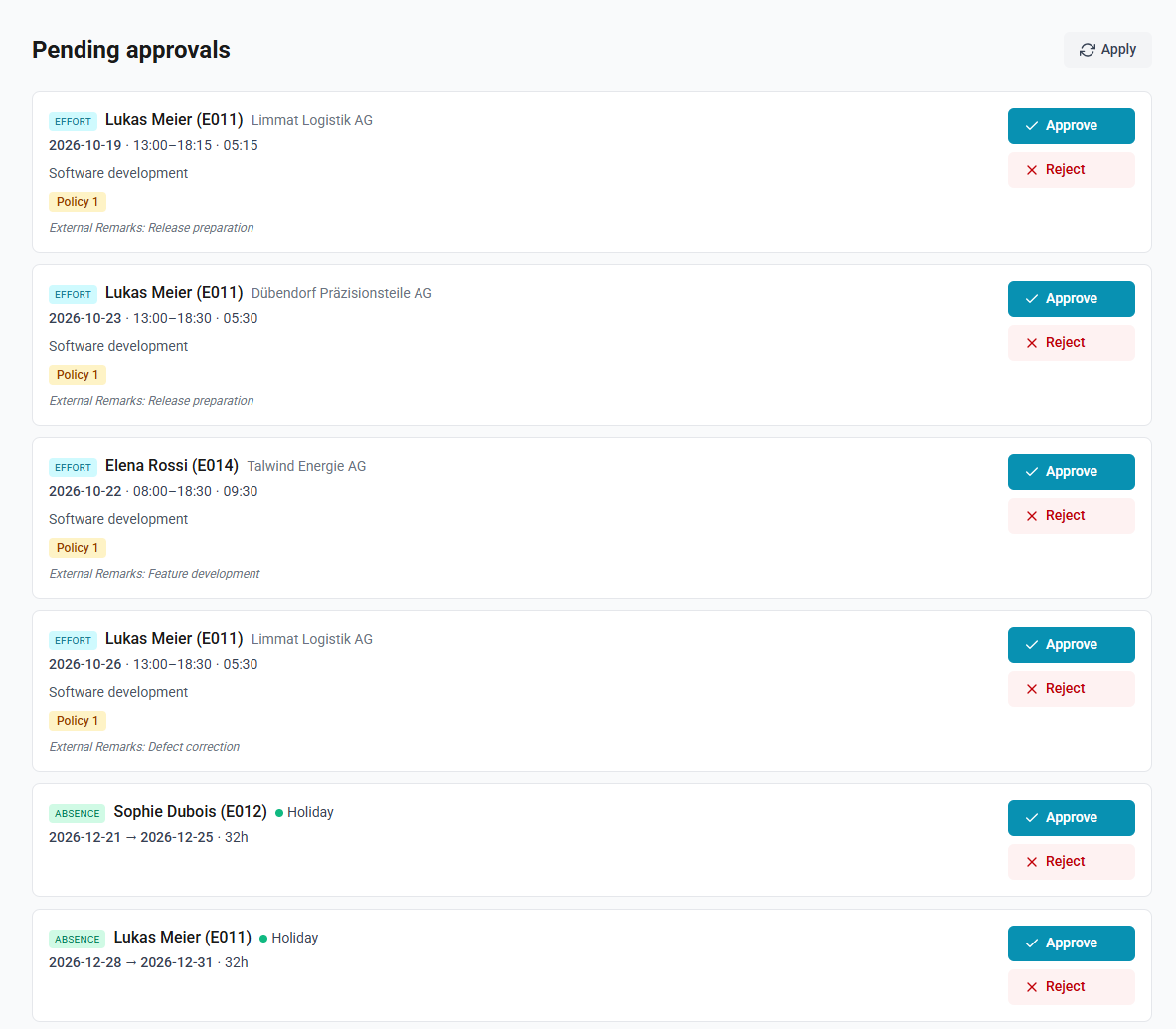
How to review an effort before deciding
- Select the effort card. The effort opens for viewing, with its materials, expenses and remarks.
- Close it, and decide on the card.
How to approve or reject an item
- Select Approve or Reject on the card.
- Enter Remarks (optional) if you wish to explain the decision.
- Select Approve or Reject to confirm.
A message confirms the decision, and the item leaves the inbox. An approved effort is read-only from then on. A rejected effort can be corrected by its author and saved again, which checks it against the policies once more.
The inbox does not refresh by itself. Select Refresh to reload it.
When an item changes after the inbox loads
If an item changes while you have the inbox open, your decision is not recorded. The inbox reloads and explains why:
| What happened | Message |
|---|---|
| The requester edited an absence request | This request was updated by the requester after you opened the inbox. The list has been refreshed — please review the latest version before deciding. |
| The requester withdrew an absence request | The requester withdrew this request before you decided. The list has been refreshed. |
| Another approver, or an administrator, decided the effort first | This effort has already been decided. The list has been refreshed. |
| The effort was deleted, or edited so that no policy requires approval any more | This effort no longer needs your decision: it was changed or deleted. The list has been refreshed. |
One team only
The Waiting for a decision figure on the home page's Team card opens Approvals with the filter One team, listing only that team's items. The inbox still lists only what you may decide.
How to see every team's items again
- Select × on the One team filter.
What the people involved are told
| Who | When | Notification |
|---|---|---|
| The approver | An effort starts waiting | A message that the employee's effort on that date, for that business partner, needs approval, followed by the policies that applied |
| The approver | An absence is requested, edited or withdrawn | A notification naming the employee, the category and the period |
| The requester | An effort is decided | A message that the approver approved or rejected the effort, with its date and business partner, followed by the approver's remarks, if any |
| The requester | An absence is decided | A message that the approver approved or rejected the request, with its category |
The decision's remarks on an absence appear with the request on the Requests page, and those on an effort when the effort is opened. Once an item is decided, the notifications asking for a decision are marked as read for everyone who received them, delegates included. Requesters see their efforts still waiting on the home page, in the card My efforts awaiting approval.
All of these also arrive by email, unless the person has switched email off for them; see Notifications.