Connecting SAP Business One and SAP FSM
ChronoHub can take its master data, such as business partners, items and employees, from SAP Business One or SAP Field Service Management (FSM). Each system ChronoHub imports from is recorded as a source: the address and the credentials ChronoHub uses to connect to it. Sources are managed under Integrations → B1 Sources and Integrations → FSM Sources.
Only administrators see these pages. Each is part of a module, and appears only when your plan includes the SAP Business One or the SAP FSM integration. See Module entitlements.
The list of sources
Each source is listed with its connection details and its Last Import: when anything was last imported from it, or a dash if nothing has been. The row's buttons import from the source, edit it, and delete it. Running an import is described in Importing master data.
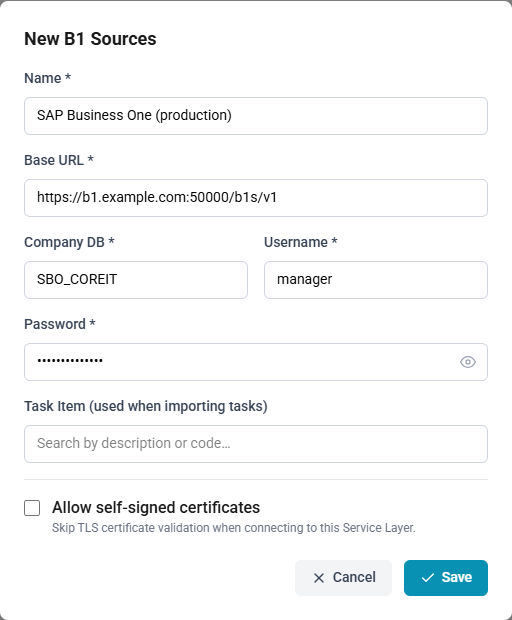
SAP Business One
ChronoHub connects to the Service Layer of SAP Business One.
| Field | What to enter |
|---|---|
| Name | A name for the source. Required |
| Base URL | The address of the Service Layer, for example https://server:50000/b1s/v1. Required |
| Company DB | The company database to import from. Required |
| Username, Password | The Service Layer user ChronoHub signs in as. Required |
| Task Item (used when importing tasks) | See The task item below |
| Allow self-signed certificates | See below |
Allow self-signed certificates
ChronoHub normally checks the Service Layer's certificate, and refuses to connect if it cannot be verified. Ticking Allow self-signed certificates skips that check for this source, for a Service Layer whose certificate is not issued by a recognised authority.
When ticked, the form shows a Security risk warning: without the check, anyone on the network path between ChronoHub and the Service Layer can intercept or alter the imported data. Tick it only if the Service Layer is reachable solely over a network your organisation controls. The better course is to give the Service Layer a certificate from a recognised authority, and leave the option cleared.
SAP FSM
ChronoHub connects to SAP FSM with a client registered in your FSM account.
| Field | What to enter |
|---|---|
| Name | A name for the source. Required |
| Base URL | The address of your FSM cluster, for example https://eu.fsm.cloud.sap. Required |
| Account ID, Company ID | The FSM account and the company within it to import from. Required |
| Client ID, Client Secret | The credentials of the client registered in FSM. Required |
| Task Item (used when importing tasks) | See The task item below |
The task item
Every task in ChronoHub has an item. Each task imported from a source is given the source's Task Item. Choose an item that suits the work the imported tasks describe; it is filled in on every effort recorded against such a task.
Importing tasks from a source is refused until a task item is chosen, with a message asking you to edit the source. For an FSM source, this stops the import at its Tasks step.
How to add a source
- Open Integrations → B1 Sources or Integrations → FSM Sources.
- Select New.
- Enter the fields described above.
- Choose the Task Item.
- Select Save.
Passwords and secrets
ChronoHub stores the Password of a B1 source and the Client Secret of an FSM source encrypted, and never shows them again. When you edit a source, the field is empty. Leave it empty to keep the stored value, or enter a new one to replace it.
How to change a source
- Open the list of sources and select Edit on the source.
- Change the fields.
- To replace the password or the client secret, enter the new one.
- Select Save.
Every source needs a name of its own: a name already used by another B1 or FSM source is refused. Every imported record carries the source's name as its Source, and later imports recognise their records by it. Renaming a source renames it on these records as well.
How to delete a source
- Select Delete on the source.
- Confirm.
Deleting a source removes its connection details, also after data has been imported from it. The records already imported from it remain in ChronoHub, with its name as their Source. A source later given the same name takes these records over: its imports update them, and remove those no longer in the source system.