Work days that require a request
Some time is worked, not absent, and still limited and approved: remote work with a yearly allowance, for example. A work category can be set to require a request. Its days are then requested and approved on the Requests page, like an absence, and count as worked time against the category's allowance.
What such a day is
- Worked time. It counts towards the hours expected of the person, and towards flex, exactly as a day recorded at the office does.
- Drawn from an allowance. Each request draws on the category's yearly entitlement, set per contract. A request beyond it is refused where overdrawn requests are blocked.
- Recorded by its request. Once approved, the request records the day's time itself, from the person's schedule. Nothing else needs entering for that day, and nothing else can be: a day, or a part of a day, is either requested work or recorded work, never both.
How to set up a category that requires a request
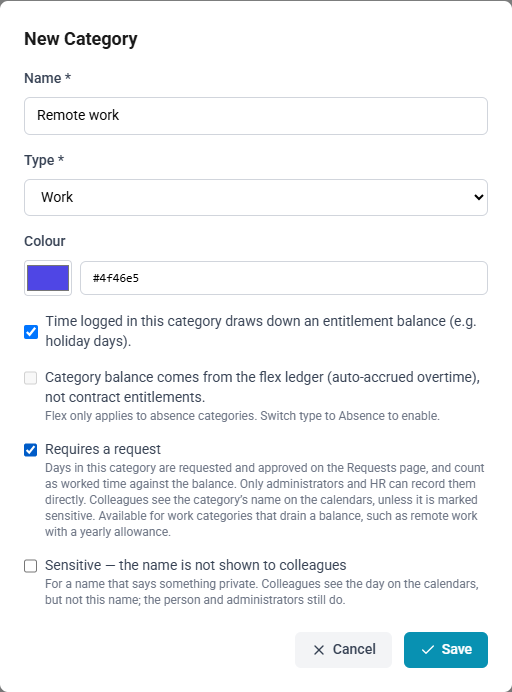
- Open Timecard Categories and create the category, or edit it.
- Set the type to Work, and tick Time logged in this category draws down an entitlement balance.
- Tick Requires a request.
- If the name says something private, tick Sensitive; see below.
- Select Save.
- Give each employee's contract an entitlement for the category: the hours a year they may take.
A built-in category, such as Work, cannot require a request.
How to request such days
- Open Requests and select New request.
- Choose the category, and the dates or the hours of a day.
- Select Submit request. Your approver decides it as they would an absence.
How to change the times of an approved day
- Open Timecards and select the day's timecard.
- Change the start, the end or the break, and select Save.
The date and the person stay as approved. To work another day instead, cancel the request and request the new day.
Who may record such days directly
Only administrators and HR, to correct records. Everyone else requests them, and the timecards screen does not offer the category.
Filling a period from the schedule leaves out the days already requested as work, and says which, because their time is recorded by their requests.
On the calendars and the dashboard
| Where | What it shows |
|---|---|
| Absence, team and department calendars | Requested work days, in indigo, named by their category, beside absences. A day with both shows the absence, and hovering it lists everything on that day |
| Your calendar subscription | Requested work days, marked as free rather than busy |
| Team and department absence cards on the dashboard | Not requested work days: the cards show who is away, and a person working elsewhere is not |
Colleagues see a requested work day's category name, unlike an absence's reason. A category marked Sensitive hides its name from colleagues as well; the person themselves, administrators and HR still see it.