Employees
Master Data → Employees lists everyone in your organisation's workspace. Each record says who a person is, where they belong, who approves their requests, and which rules apply to them. Administrators, managers and HR see this page.
Who may do what
| Administrator | Manager | HR | |
|---|---|---|---|
| Open any record | Yes | Yes | Yes |
| Create employees | Yes | Yes | Yes |
| Set the role and the seat | Yes | No | No |
| Change an administrator's Email or Login email (override) | Yes | No | No |
| Reset password | Anyone | People with the Employee role | No |
| Resend invitation | Anyone | People with the Employee role | Anyone except administrators |
| See the Flex and Opening balances figures | Anyone | Themselves and people in a team they manage | Anyone |
| Manage contracts, adjust flex, pay out, set opening balances | Yes | No | Yes |
| Delete | Yes | No | No |
| Import | Yes | No | No |
The list's button reads Edit, or View for imported records.
The list
Filter by Search by name or code, by Source, the system an employee was imported from, and by Imported: Imported or Local. Select Apply. Each person shows their code, name, email, role and source. View switches between cards and a table.
Creating an employee
How to create an employee
- Select New.
- On the Identity tab, enter the Code, the Name and the Email.
- Leave Send invitation email ticked for the person to choose their own password.
- On the Organisation and Settings tabs, fill in what applies; see below.
- Select Save.
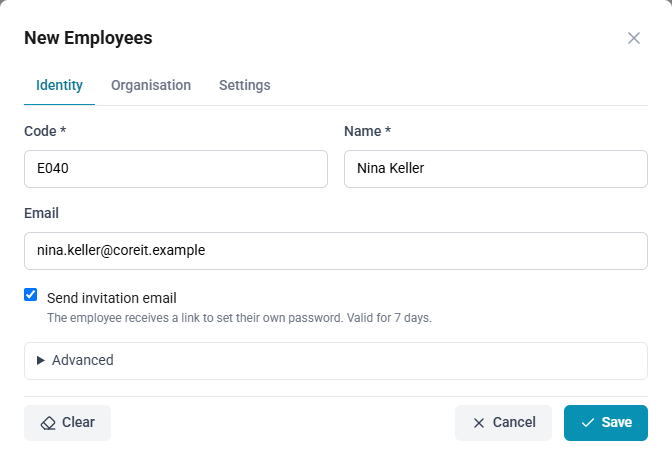
The invitation link is valid for 7 days. After saving, a message says whether it was sent. With no address, or if sending failed, nothing is sent; use Resend invitation later. See Signing in.
A new employee starts with your workspace's default country. A Country is required; if it is missing, the form opens the Settings tab and says so.
The tabs
| Tab | What it holds |
|---|---|
| Identity | Code, Name, Email; under Advanced, the Login email (override). See Login email override |
| Organisation | Departments, team, approver, role and seat |
| Settings | Country, Region (canton / state), and the two overdrawn overrides |
| Contract | A read-only summary of the person's contracts and entitlements |
| Flex | The hour bank |
| Opening balances | Allowance used or carried in before ChronoHub |
Contract, Flex and Opening balances appear once the employee has been saved.
Organisation
- Primary department and Further departments: see Belonging to several departments. Managers may change the departments and team only of people in a team they manage, never their own, and may place someone only in a team they manage.
- Team: placing the person in a team, or moving them to another, makes that team's manager their Direct approver, replacing the previous one. Saving the record in the same team keeps the approver it shows, and gives the team's manager only to someone who has no approver. See Teams.
- Direct approver: who decides the person's requests and efforts. Administrators, managers and HR are offered, and nobody approves their own. See Approvals.
- Role: Administrator, Manager, Employee or HR. Shown only to administrators.
- This employee holds a seat: shown only to administrators, and only when your plan limits seats. See Seats.
Changing someone's role to Employee also removes them as anybody's direct approver and as manager of any team, and deletes the approval delegations they gave or received. The last administrator holding a seat cannot be changed to another role.
Two-factor authentication
Administrators see, on the Identity tab, whether the person has two-factor authentication on, and since when. Someone who has lost their authenticator app and their recovery codes cannot sign in with their password; an administrator can reset it for them.
How to reset someone's two-factor authentication
- Open the employee, and on the Identity tab, select Reset two-factor authentication.
- Read the confirmation, and select Reset two-factor authentication.
The person then signs in with their password alone, and is asked to set up two-factor authentication again. Their recovery codes and trusted browsers are removed. ChronoHub records who reset it, and sends the person an email; the message on the form says to which address. Administrators turn off their own two-factor authentication on their profile, not here.
Settings
- Country and Region (canton / state): decide which public holidays apply. See Country on an employee.
- Allow overdrawn absence requests and Allow overdrawn timecards: Use tenant default follows the workspace setting in Settings; Always allow and Always block override it for this person. They decide whether a request, or a timecard in a category with an allowance, may go beyond the year's allowance.
Contract, Flex and Opening balances
The Contract tab lists each contract's FTE, dates and entitlements. For administrators and HR, Manage contracts opens Employee Contracts, where they edit them. See Contracts and entitlements. For Flex and Opening balances, see Flex and opening balances.
Passwords and invitations
How to send a password reset link
- In the list, select Reset password beside the person.
- Select Send reset link.
The link is valid for 60 minutes. The person's current password keeps working until they choose a new one. A person without an email address cannot be sent a link.
How to resend an invitation
- In the list, select Resend invitation beside the person.
The invitation goes to the person's email, or to their sign-in address if that is the only one. It replaces any link sent earlier. Inactive employees cannot be invited. An administrator's invitation is sent by an administrator.
Imported employees
Employees imported from SAP Business One or SAP Field Service Management keep their Code, Name, Email and Primary department from the source system, and these fields cannot be edited; a notice at the top of the record says so. Everything else, including the team, approver, country, region and overrides, is set in ChronoHub. See Importing master data.
The partner's support account
If a partner manages your workspace, the list includes the partner's support account. Its name and addresses belong to the partner and cannot be edited, and it needs no seat. An administrator can delete it when it is no longer required.
Deleting an employee
How to delete an employee
- In the list, select Delete beside the person.
- Confirm with Delete.
An employee who has recorded efforts, has submitted requests, or is still someone's direct approver cannot be deleted: This record cannot be deleted because it is referenced from another location. Deleting an employee also deletes their timecards, contracts and schedule assignments. Deleting an imported employee removes them only from ChronoHub; the next import may bring them back.