Balance export
The balance export lists the balances of every active employee on one page, and downloads them as an Excel file. It is under Time Management → Balance Export, for HR and administrators.
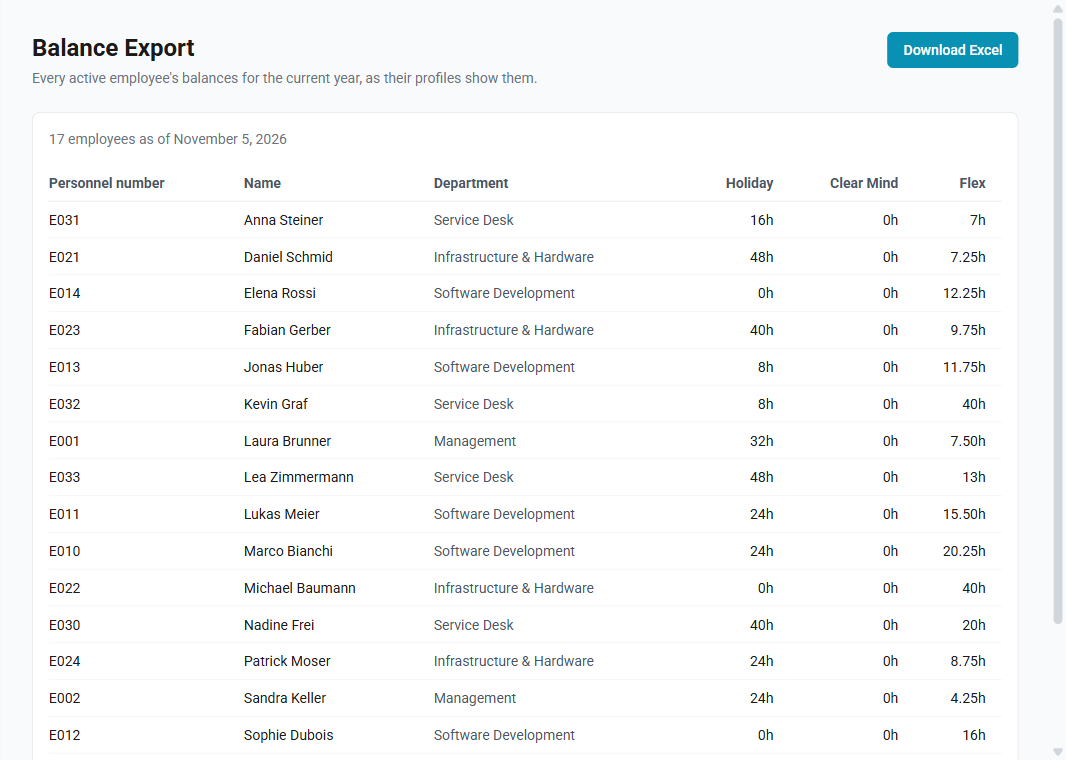
What it shows
One row per active employee, with their personnel number, name and department, and one column per balance:
- Each category with a balance, such as Holiday: what the employee has left this year, the figure their profile shows as Remaining. It is the year's entitlement less the hours already approved and those still pending.
- Flex: the employee's flex balance, as on their profile.
The figures are those of the current year, as of today, and they are always the same as the employees' profiles show, because both are calculated the same way. See Contracts and entitlements and Flex and opening balances.
An empty cell means the employee has no balance of that kind: they are not entitled to the category, or, for Flex, they have no flex hours and no flex limit. A 0 means a balance that is used up.
The Excel file
The file has two sheets:
- Hours, the figures as the page shows them.
- Days, the same figures in working days. Each employee's hours are divided by the length of their own working day: the average of the working days of their weekly schedule. Someone working three full days a week has full-length days; someone working five mornings has half-length days. The sheet shows each employee's working day in its own column. An employee without a schedule has empty cells on this sheet, as there is no working day to convert by.
The file is named after the company and the date, for example
balances-coresystemsag-2026-11-05.xlsx, and its headings are in the language
ChronoHub is shown in.
How to download the balances
- Open Time Management → Balance Export.
- Wait for the table to appear. With many employees, this takes a few seconds.
- Select Download Excel.