Country on an employee
Every employee has a country of their own. It records where that person works, and it is what decides which public holidays apply to them.
This matters when your company operates in one country but employs people in another: a Swiss company's employees in Germany receive German public holidays, not Swiss ones.
Where to find it
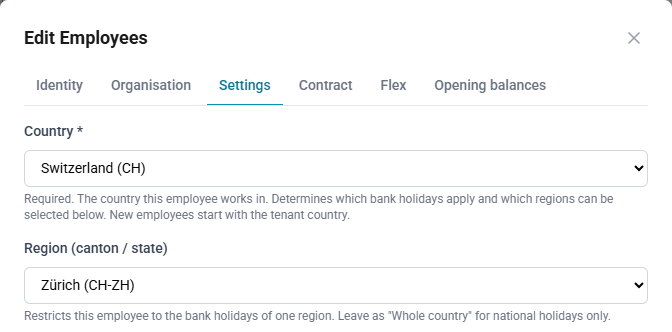
Country and Region are on the Settings tab of the employee record.
- Country — required. The country this person works in. An employee cannot be saved without one; if you try, the form returns you to the Settings tab and says so.
- Region (canton / state) — optional. A subdivision of that country.
How to set an employee's country
- Open Master Data → Employees and select Edit on the employee.
- Select the Settings tab.
- Choose the Country.
- Choose the Region (canton / state), or leave Whole country.
- Select Save.
Region stays optional deliberately. Most countries have no subdivisions recorded, and "the whole country, national holidays only" is a perfectly normal answer — requiring a region would make employees in those countries impossible to save.
How the two work together
The region list contains the subdivisions of the country you have chosen, so you have to pick the country first. Until you do, the region selector stays disabled.
Changing the country clears the region, because a region belongs to exactly one country. Choose the new region afterwards if the person needs one.
Leaving the region as Whole country means the employee receives that
country's national holidays and nothing else. Choosing a region adds that
region's holidays on top — a person in DE-BY receives both German national
holidays and Bavarian ones.
What new employees start with
A new employee opens with the company-wide country already selected, taken from Settings → Absences and holidays → Default country. In the common case you do not have to touch the field at all. Change it for anyone who works somewhere else.
If your company has no default country set, the field opens empty and you must choose one before the employee can be saved. Setting the default in Settings first saves doing this for every new person.
Employees recorded before countries were kept per employee received the
company-wide country. Anyone who already had a region kept it, together with
the country that region belongs to — a person on DE-BY in a Swiss company is
recorded as working in Germany, not Switzerland.
The company-wide default country
Settings → Absences and holidays → Default country is the country new employees are created with. It is not a fallback: changing it does not move employees who already exist, because each of them carries their own country.
To move existing people to a different country, change it on their employee records.
Imported employees
Where the source system records a country for someone, ChronoHub applies it on every import:
- SAP Business One — the work address country, falling back to the home address country when there is no work address. Where someone works is what determines their public holidays.
- SAP Field Service Management — no country is imported. FSM does not carry one on the person record, so imported employees receive the company-wide country and can be adjusted by hand.
If the source system has no country on file for a person, whatever is set in ChronoHub is left alone rather than being cleared.
If a country has no regions
Not every country has its subdivisions listed. When the chosen country has none, the region selector offers only Whole country, and the employee receives that country's national holidays. This is the correct outcome for most countries; if you need regional holidays for a country that shows none, raise it with your administrator.