Recording timecards
A timecard records the hours a person worked, or was absent, on one day: a start, an end, a break and a category. Timecards are what flex, balances and the payroll export are calculated from. They are kept under Time Management → Timecards. A working day needs no timecard: with nothing recorded, it counts as worked as scheduled; see How time is counted.
Who records what
| Role | Timecards they may record and change |
|---|---|
| Employee | Their own |
| Manager | Their own and those of the members of the teams they manage |
| Administrator, HR | Everyone's |
When someone else creates, changes or deletes one of your timecards, you are told; see When somebody changes or deletes your records.
The list starts on your own timecards. Administrators and HR can tick Show all employees, and managers Show team members, to include everyone else they may see; the choice is remembered in this browser. Closed timecards are hidden unless Show closed is ticked.
From and To above the list narrow it to a period. When the list includes other people's timecards, Employee narrows it to one person. Select Apply, or Clear to show everything again.
In the card view, Sort by orders the cards, and the button beside it switches between ascending and descending. In the table view, select a column heading. Both views keep the same order.
The timecard form
New opens the New Timecard form, filled in for you and for today.
| Field | What it holds |
|---|---|
| Single date / Date range | One day, or a timecard for each day of a period |
| Employee | Whose timecard it is. Only the people you may record for are offered; an employee's own name is fixed |
| Category | Work unless another is chosen. Categories that are taken through a request, such as remote work, are offered only to administrators and HR; see Work days that require a request |
| Date, or Start date and End date | The day or the period |
| Use schedule | Takes the times from the person's schedule |
| Start, End, Break | The times, when they are entered by hand |
| Remarks | A note |
Use schedule
Use schedule is ticked whenever the person has a schedule on the chosen date, and the times then come from it:
- For a single date, the form shows the scheduled times and break in place of the time fields, for example Schedule: 08:00–17:00, break 01:00. On an off day it reads Off-day in the schedule — enter times manually, and the time fields appear.
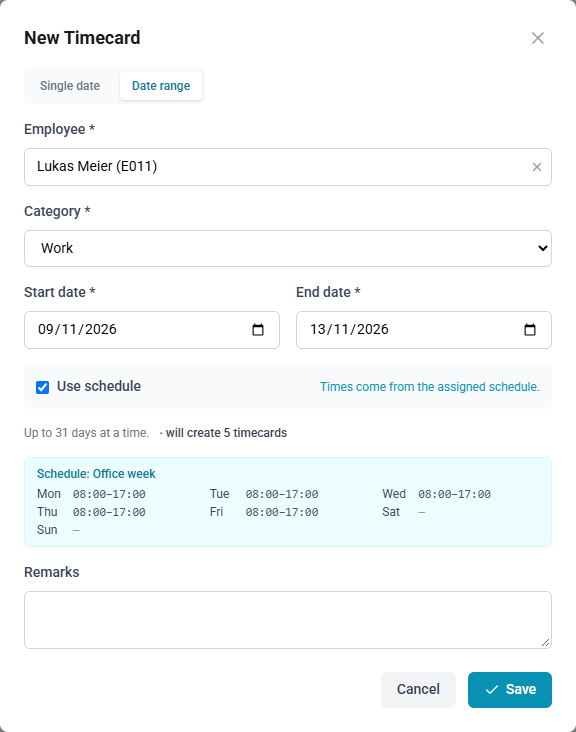
- For a date range, the form shows the schedule's week, day by day, and creates a timecard for each working day only. Off days and bank holidays are left out.
- Without a schedule, the option is unavailable and reads No active schedule for this date.
Clear Use schedule to enter the times yourself.
Notices on a single date
- Bank holiday: followed by the holiday's name, when the date is a public holiday for the person.
- Half-day holiday: followed by the holiday's name and when it applies, on a half-day holiday, for example Half-day holiday: Christmas Eve, from 12:00. Only the working time outside it is expected. See Half-day public holidays.
- Ends on the next day. when the end is earlier than the start. The timecard is read as an overnight shift, so 22:00 to 06:00 records eight hours on the start date.
Allowance preview
In a category that draws on a yearly allowance, the form shows how many hours the entry would use from that year's allowance in the category, with what is used and what remains. If the entry exceeds the allowance, the preview says either that overdraw is permitted for this employee, or that the entry will be rejected; in the second case Save is unavailable until the entry is shortened, or an administrator lifts the limit. A date range filled from the schedule shows no preview, but is checked in the same way on saving. See Contracts and entitlements.
How to record one day
- Open Time Management → Timecards and select New.
- Keep Single date selected.
- Choose the Employee and the Category, if they differ from the defaults.
- Enter the Date.
- Keep Use schedule ticked, or clear it and enter Start, End and Break.
- Select Save.
How to record a period
- Open Time Management → Timecards and select New.
- Select Date range.
- Choose the Employee and the Category.
- Enter the Start date and End date.
- Keep Use schedule ticked, or clear it, enter the times, and tick Skip weekends (Sat / Sun) if weekends are to be left out.
- Select Save.
Limits on a period
Beneath the dates, the form shows the most days a period may span (for example Up to 31 days at a time.) and, with times entered by hand, how many timecards it will create. A longer period is refused. Above a second, smaller number of days, saving first asks Create multiple timecards?; select Confirm to go ahead. Administrators set both numbers under Settings; see Settings.
Days already requested and approved as work are left out, and a notice above the list names them: their time is recorded by their requests.
If saving fails
The message shown names the problem. The usual causes:
- The start and end times are the same.
- The period is longer than allowed, or no day in it is left to record: every day is an off day in the schedule, has no schedule, or is already requested as work. See Limits on a period.
- The day is already requested and approved as work, such as remote work; its time is recorded by that request.
- The category is recorded through a request, on the Requests page. See Work days that require a request.
- The entry exceeds the category's allowance, and overdraw is not permitted; see Allowance preview.
- The timecard is Closed and can no longer be changed.
- The timecard was created by an approved request, which keeps its date and person; cancel the request and request the new day instead.
Attachments
An existing timecard has an Attachments tab, for documents such as a medical certificate: JPEG, PNG, WebP or PDF files of up to 25 MB. Attachments are added once the timecard has been saved, by opening it again.
Whoever may see a timecard may open its attachments, and may add or remove them while the timecard is open; see Who records what. A Closed timecard's attachments can be opened, not changed.
Editing and deleting
Select Edit on a timecard to change it, or Delete to remove it after a confirmation. A timecard created by an approved request keeps its date and person; its times may be adjusted. To move it to another day, cancel the request and request the day again. Administrators and HR may correct such timecards in full.
A Closed timecard is read-only: it offers View in place of Edit, and cannot be deleted.
The Record today card
The Record today card on the home page records today's timecard in one step, from your schedule or from one of your quick-log templates. Templates are kept on the Timecards tab of your profile; see Your profile. On an off day, the card's Log anyway opens this form for today. See The home page.