Notifications
ChronoHub notifies you when something needs your attention or concerns your own records: a request waiting for your decision, a decision on your own request, or a change someone else made to your timecards. Notifications appear under the bell, and some are also sent by email.
The bell
The bell sits beside the ChronoHub name at the top of the menu, and in the top bar on a phone. A red badge shows how many notifications are unread; it is refreshed every 30 seconds.
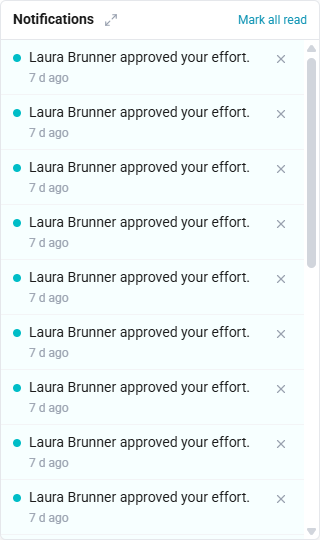
Selecting the bell opens the most recent notifications, the unread ones highlighted with a dot. In the list:
- Selecting a notification marks it read and opens the page it concerns. It stays in the list until you remove it.
- × (Dismiss) removes a notification.
- Mark all read marks every notification read.
- The icon beside the title (Manage notifications) opens the Notifications page.
When there is nothing to show, the list reads You're all caught up.
The Notifications page
The Notifications page lists every notification you have not removed, newest first, page by page. It offers the same actions as the bell, with a tick (Mark as read) on each unread notification and a bin (Delete) on each one. A removed notification does not return.
Where each notification leads
| Notification | Who receives it | Selecting it opens |
|---|---|---|
| An absence or work day was requested | The approver, or their delegate | Approvals |
| A pending request was updated | The approver | Approvals |
| A pending request was withdrawn | The approver | Approvals |
| An approved absence was cancelled | The approver | Absence Calendar |
| Your request was approved or rejected | The requester | Requests |
| An effort needs approval | The effort's approver | The effort, on Efforts |
| Your effort was approved or rejected | The effort's owner | The effort, on Efforts |
| Your flex balance was paid out | The employee | The Absences tab of your profile |
| The navigation display for your role was updated | Each person on the role whose own menu choices the defaults replaced | The Navigation tab of your profile |
| Someone updated or deleted your timecard or absence request | The owner of the record | Timecards or Requests |
| Seats over the plan's limit, or all seats un-assigned | Every administrator | Seats |
A deleted record cannot be opened, so its notification names the dates it covered and leads to the list it was in.
Choosing what you hear about
Notifications about requests can be switched on or off for each category, separately for the bell and for email. Efforts have two rows of their own: Efforts awaiting your decision, shown to administrators, managers and HR, and Decisions on your efforts. They are set on the Notifications tab of your profile, which lists the effort rows first, then every absence category and every work category that requires a request.
| Column | Default | What it controls |
|---|---|---|
| In-app | On | The bell and the Notifications page |
| On | An email to the address on your account |
Both are on unless you switch them off. The preference belongs to whoever receives the notification. An approver who clears In-app for a category does not see requests in that category under the bell; the requests still wait under Approvals. An approver who clears Email for a category, or for Efforts awaiting your decision, no longer receives those requests by email. A requester who clears Email for a category, or for Decisions on your efforts, receives those decisions under the bell only.
Emails are sent once the change they report has been saved, so a request or decision that fails is never emailed.
How to change your notification preferences
- Open My Profile and select the Notifications tab.
- For each row, clear In-app or Email to stop those notifications, or tick them again.
Each change is saved as soon as it is made, and Notification preferences saved. confirms it.
Notifications that cannot be switched off
Some notifications do not depend on the preferences, because they concern your own account rather than requests you follow:
| Notification | Bell | |
|---|---|---|
| Someone else updated or deleted your timecard or absence request; see When somebody changes or deletes your records | Always | Always |
| Your flex balance was paid out | Always | Always |
| Your administrator applied navigation defaults to your role; see Choosing what appears in the menu | Always | Never |
| Seats over the plan's limit, or all seats un-assigned (administrators); see Seats | Always | Always |
Email is sent only to an account that has an email address.