Validation policies
A validation policy is a rule that decides which efforts need approval before they count as settled: efforts outside business hours, for example, or efforts without external remarks. An effort that matches a policy waits for the employee's approver. Policies are managed under Effort Management → Policies.
Who may manage policies
| Role | Policies |
|---|---|
| Administrator | View, create, edit and delete |
| Manager, HR | View only |
| Employee | The page is not available |
Policies apply to the whole organisation, whoever created them.
The rule types
| Rule type | An effort matches when | Settings |
|---|---|---|
| Always require approval | Always | None |
| Daily duration exceeds limit | The employee's efforts on that date, this one included, add up to more than the limit | Hours, 8 by default |
| Outside business hours | Any part of it lies outside the business hours: it starts before the start time, ends after the end time, or runs past midnight. An effort ending at 00:00 ends at the close of its day. Business hours that run past midnight, such as 22:00 to 06:00 for a night shift, are understood as such | Start time and End time, 08:00 and 18:00 by default |
| Missing parent object | It has no parent object | None |
| Missing external remarks | Its external remarks are empty, or contain only spaces | None |
For Daily duration exceeds limit, only the effort being saved is checked: the effort that takes the day over the limit waits for approval, and the efforts saved earlier that day do not.
Narrowing a policy
Applies when chargeable is limits a policy to chargeable efforts (Yes), to efforts that are not chargeable (No), or applies it to both (Any).
Filters limit a policy to some efforts. A policy without filters applies to all efforts. Each filter names a dimension, a mode and a value:
| Dimension | Value |
|---|---|
| Department | A department. A person matches through their primary department or any further department |
| Employee | An employee |
| Customer | A business partner |
| Parent object type | The type ID of a parent object, as it appears in the source system |
| Parent object | A parent object |
How several filters combine:
- Include filters of one dimension form a list: the effort must match at least one of them.
- Exclude filters of one dimension rule out each value they name.
- Filters of different dimensions must all be satisfied.
For example, a policy with two filters Department, Include, one for Service Desk and one for Infrastructure & Hardware, and a filter Customer, Exclude for one business partner, applies to the efforts of both departments, except those for that business partner.
Active
Only active policies are checked. Clearing Active sets a policy aside without deleting it; the list marks it Inactive.
How to create a policy
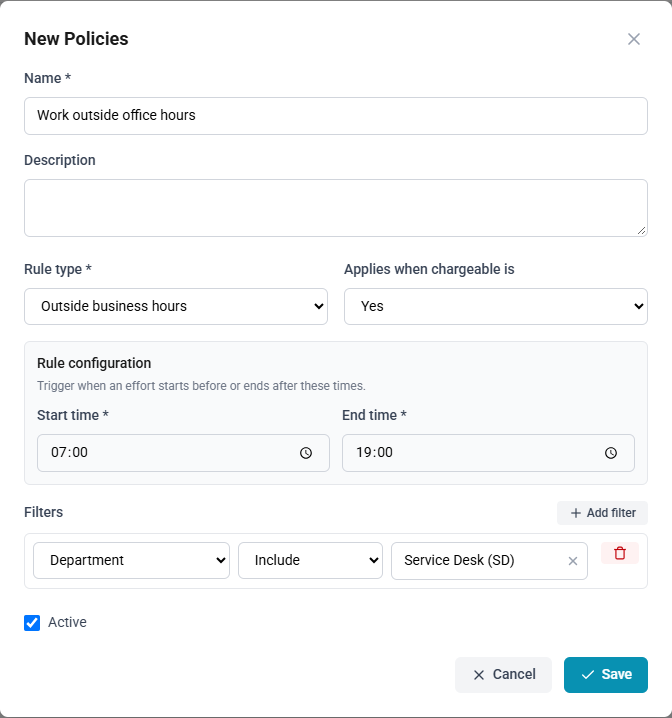
- Open Effort Management → Policies and select New.
- Enter the Name and, if useful, the Description.
- Choose the Rule type, and fill in its settings under Rule configuration.
- Choose when it applies under Applies when chargeable is.
- To narrow it, select Add filter, then choose the dimension, Include or Exclude, and the value. Repeat for each filter.
- Leave Active ticked.
- Select Save.
How to find a policy
- Enter part of the name or description in the search field.
- Choose All, Active or Inactive under Status.
- Select Apply.
How to delete a policy
- Select Delete on the policy.
- Confirm the deletion.
What happens to a matching effort
Policies are checked each time an effort is created or saved:
- If one or more policies match, the effort waits for approval. Its author is told so when saving, and the employee's approver is notified. The approval card lists the names of all the policies that matched.
- If an effort that was waiting is saved again and no policy matches, it stops waiting, and it leaves the approver's inbox.
- An approved effort is read-only, so it is not checked again.
Editing, deactivating or deleting a policy does not recheck efforts already saved. They are checked against the current policies the next time they are saved.
Efforts imported from SAP FSM are never checked against policies.
The Policy triggers (7 days) figure on the home page's Team card counts a team's efforts that needed approval under a policy in the last seven days.