Department absence calendar
The department calendar shows when the members of a department are away, one month at a time. It is the department counterpart of the team calendar, for companies that organise their people by department.
Finding it
Two ways in:
- Department Management → Department Calendar in the menu.
- The calendar icon on any row of the Department Overview, which opens that department directly.
The department you are viewing appears in the URL, so a link to a specific department's calendar can be shared or bookmarked. Opened from the menu, the calendar shows your own department.
Reading it
Each row is a person, each column a day of the month. Coloured cells are absences; the calendar shows both approved absences and those still pending a decision, styled differently so an unconfirmed request never looks settled. Public holidays that apply to that person's region are marked as well, which is why two people in the same department can show different holidays.
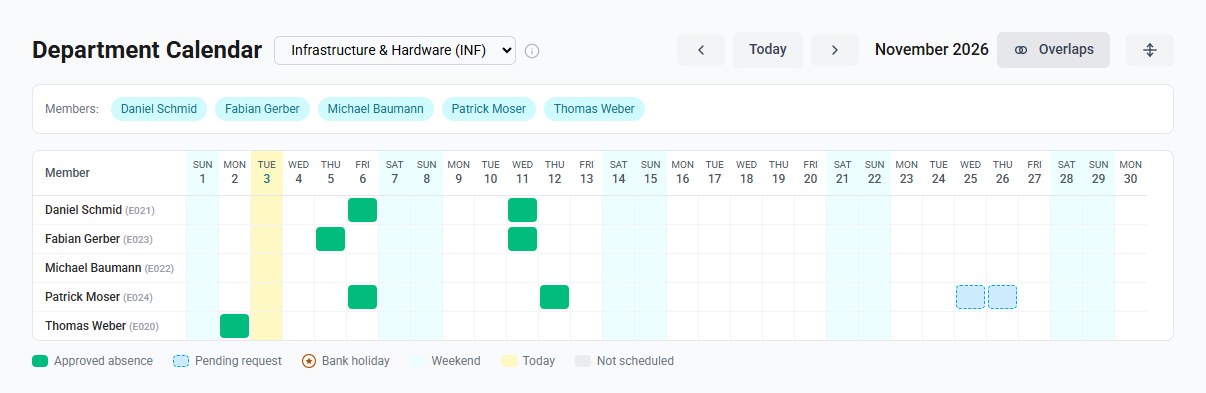
Requested work days, such as remote work, are shown too, in indigo and named by their category: the person is working, not away, so they never look like an absence. A category marked sensitive shows no name to colleagues. The (i) beside the title says what the calendar shows; see Work days that require a request.
Everyone in the department appears, including people with no absences at all — an empty row is useful information when you are planning cover.
Choosing a department
If more than one department is available to you, a dropdown appears next to the title. If only one is, it is shown as plain text rather than a dropdown that offers no choice.
Highlighting overlaps
The Overlaps button marks days where two or more members of the department are absent at the same time. It is off by default and remembered per device, so leaving it on will not affect anyone else.
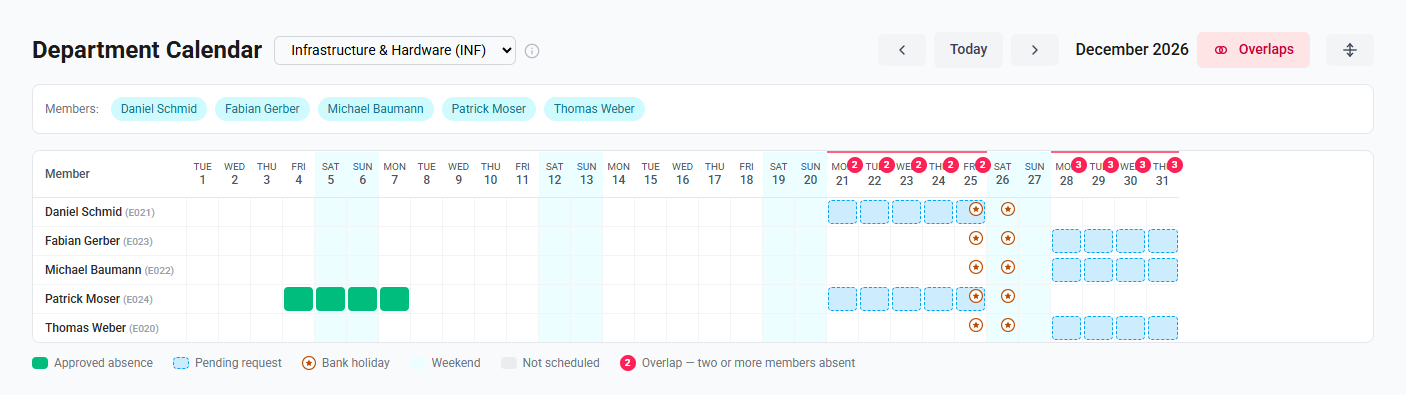
The team calendar has the same button, remembered separately — departments are usually larger than teams, so a setting that suits one often does not suit the other.
Who can see what
- Administrators and HR see every department.
- Everyone else sees the departments they belong to: their primary department and any further ones. See Belonging to several departments.
Within a department, you see your colleagues' absence dates and whether each request is approved or pending. You do not see the reason: the absence category is visible only on your own entries. Administrators and HR see categories throughout.
This matches how the team calendar has always worked. If you are not assigned to a department, the page tells you so — ask an administrator to set your department on your employee record.
What it does not do
- It is read-only. Requests are created and decided on the Absence Requests page.
- It shows one department at a time. For a company-wide view use the Absence Calendar; for a team, the Team Calendar.
- There is no calendar subscription feed per department yet. Individual requests can still be exported to your own calendar from the request itself.