Timecard categories
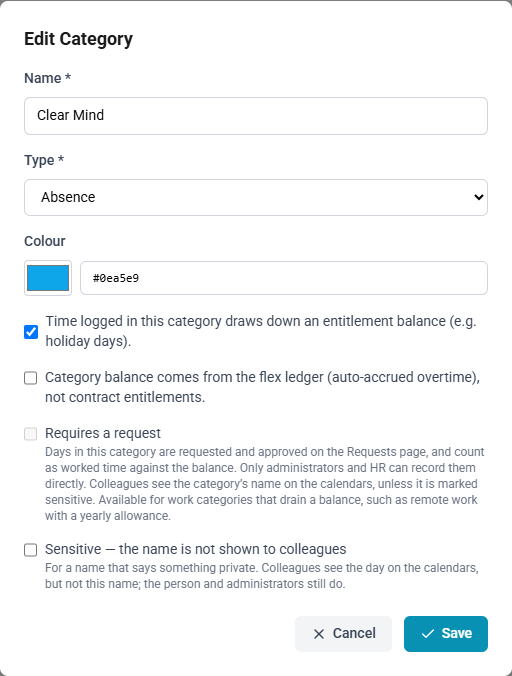
Every timecard and every request belongs to a category: Work, Holiday, Sick leave and so on. A category decides whether the time counts as work or as absence, whether it draws on an allowance, and how it is requested. Administrators manage categories under Time Management → Timecard Categories.
What a category holds
| Setting | What it does |
|---|---|
| Name | Shown wherever the category is chosen or listed. Each name is unique. |
| Type | Work or Absence. Absence categories are the ones requested on the Requests page. |
| Colour | The dot beside the category's name in timecards, requests, approvals, contracts and balances. Choose it from the picker or enter a hex code such as #4f46e5. |
| Draws down an entitlement balance | The box reads Time logged in this category draws down an entitlement balance. Time in the category counts against the yearly entitlement on the employee's contract, and the category appears among their balances. The table shows it as Drains balance. |
| Flex ledger | The box reads Category balance comes from the flex ledger. For absence categories only: the balance is the employee's flex hour bank instead of a contract entitlement, so taking time in the category spends banked overtime. See Flex and opening balances. |
| Requires a request | For a work category that draws down a balance: its days are requested and approved like an absence. See Work days that require a request. |
| Sensitive | The category's name is not shown to colleagues. See Work days that require a request. |
The form enables an option only where it applies. The flex option stays disabled for a work category, and Requires a request stays disabled until the type is Work and the balance box is ticked. Changing the type or clearing the balance box clears the options that do not apply to the result.
How many hours a category allows each employee is set on their contract, not on the category. See Contracts and entitlements.
How to create a category
- Open Time Management → Timecard Categories and select New.
- Enter the Name.
- Choose the Type.
- Choose the Colour.
- Tick the options that apply.
- Select Save.
System categories
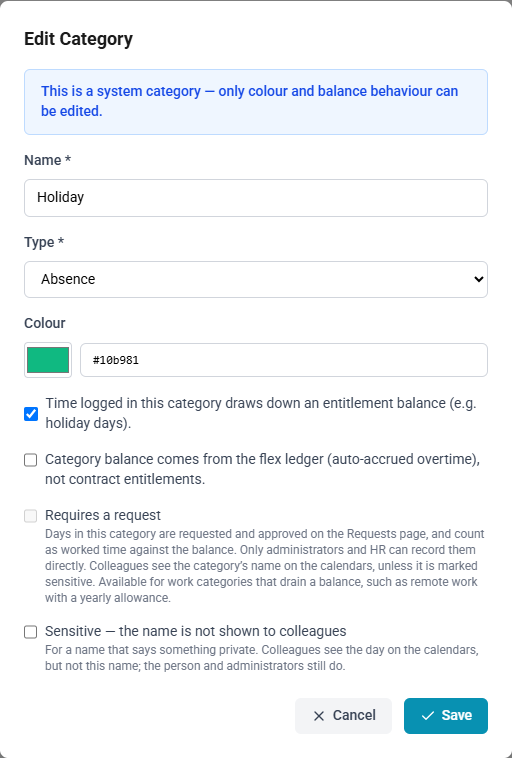
ChronoHub provides five categories of its own: Work, Holiday, Sick leave, Compensation and Flex. They are marked System in the list, and other parts of the product rely on them: Work, for example, is the category every timecard starts with.
| On a system category | |
|---|---|
| Name and type | Fixed |
| Colour, the balance box, the flex option and Sensitive | Editable |
| Requires a request | Not available |
| Deleting | Not available |
Editing a system category shows a notice saying so, and the name and type fields are disabled.
How to delete a category
- Select Delete on the category.
- Confirm.
A category cannot be deleted while anything uses it. Timecards in the category are refused with Category is in use by existing timecards; requests, contract or template entitlements and opening balances in the category are refused with This record cannot be deleted because it is referenced from another location. Remove those first, or keep the category.
Who may do what
Only administrators open Timecard Categories. Everyone sees the categories where they record time or request it.
Where categories appear
| Where | Which categories |
|---|---|
| Timecards | Every category the person may record directly. A category that requires a request is offered only to administrators and HR. See Recording timecards. |
| Requests | Every absence category, and every work category that requires a request. See Requesting an absence. |
| Calendars | Absences, and requested work days by their category's name unless it is sensitive. See The calendars. |
| Contracts and templates | Each entitlement names a category. |
| DATEV Export Setup | Each category is mapped to a DATEV wage type or absence code; unmapped categories are left out of the export. See DATEV payroll export. |