The calendars
ChronoHub has three calendars that show, one month at a time, who is away: the Absence Calendar, the Team Calendar and the Department Calendar. They show approved absences and requests still pending, so cover can be planned before a decision is made. The calendars are read-only; absences are requested on the Requests page.
This page describes the Absence Calendar and the Team Calendar, and the controls all three share. The Department Calendar has its own page: Department absence calendar.
The Absence Calendar
Time Management → Absence Calendar shows everyone you may see who has an absence or a request in the month. People with nothing booked are left out, so the calendar stays short; a month with nobody away reads No absences in this month for anyone you can see.
| Role | People shown |
|---|---|
| Administrator, HR | Everyone in the company |
| Manager, Employee | Yourself, your own team and its manager, the teams you manage, and the colleagues of every department you belong to |
The Team Calendar
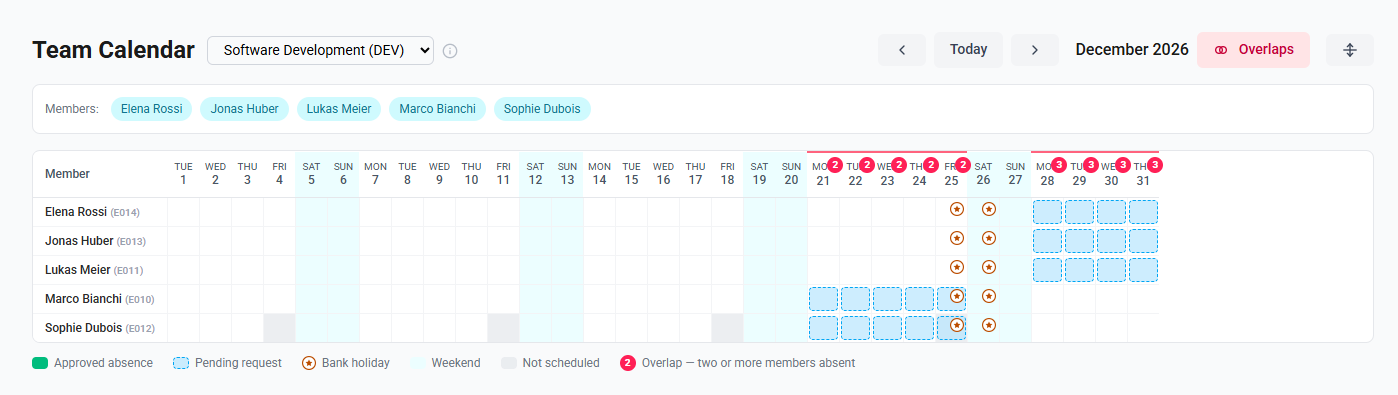
Time Management → Team Calendar shows one team: its members and its manager, each on a row, including those with nothing booked. Days a member's schedule does not have them working are shaded as Not scheduled.
Administrators and HR may choose any team. Everyone else sees the team they belong to and the teams they manage. With more than one team available, a selector beside the title chooses the team; with one, its name is shown. With no team chosen, the calendar opens on your own team. Someone on no team sees You are not on any team yet.
The Team absences card on the home page and the Team Overview open the calendar for a particular team. The team appears in the page's address, so a link to it can be shared or bookmarked.
What you see of colleagues
For a colleague, an absence shows its dates and whether it is approved or pending, but not its category. You see the category of your own entries; administrators and HR see every category. Requested work days, such as remote work, show their category's name to everyone, unless the category is marked sensitive. See Work days that require a request.
Reading the calendar
| Mark | Meaning |
|---|---|
| Solid green | Approved absence |
| Dashed blue outline | Pending request |
| Indigo, solid or dashed | Requested work day, approved or pending; shown only in a month that has one |
| Holiday badge | Bank holiday for that person's region |
| Tinted column | Weekend, or Today |
| Grey | Not scheduled: a day the person's schedule does not include. Team and Department Calendars only |
| Red count | Overlap — two or more members absent; shown with Overlaps switched on |
The legend beneath the calendar names the marks; those that do not occur in the month are left out. Hovering over a day lists what is on it: the category where you may see it, Pending or Approved, and the bank holiday's name. A day with several entries lists each of them; an absence takes precedence over a requested work day in the colour shown. The (i) beside the title summarises what the calendar shows.
Controls shared by all three calendars
| Control | What it does |
|---|---|
| The arrows, Previous month and Next month | Move to the previous or the next month; the month shown is named beside them |
| Today | Returns to the current month |
| Swap rows and columns | Shows days as rows and people as columns, or the reverse. With people as columns, each column shows the person's initials; hovering shows the full name. The choice is remembered in this browser, for all three calendars |
| Members: | Each name hides or shows that person. Show all shows everyone again. The selection is kept for each calendar until you sign out or close the browser. With more than twelve people, the names are folded away behind a line such as People: all 42 shown; Choose opens them, with a search by name or code |
| Overlaps | Team and Department Calendars only: marks the days on which two or more people are absent, with the number. Requested work days do not count. Off by default, and remembered in this browser separately for teams and departments |
How to see a month on the Team Calendar
- Open Time Management → Team Calendar.
- If more than one team is available, choose the team beside the title.
- Select the Previous month or Next month arrow until the month is shown.
How to show only some people
- On the calendar, under Members:, select each person to hide. With more than twelve people, select Choose first, and type part of a name or code in the search to find them.
- To show everyone again, select Show all.
How to find days when several people are away
- Open the Team Calendar or the Department Calendar.
- Select Overlaps.
- Read the count on each marked day; hover over it for the number absent.