Contracts and entitlements
An employee's contract records how much they work and for which period, and carries their entitlements: the hours a year they may take in each category, such as holiday. ChronoHub calculates every allowance balance from these entitlements. Administrators and HR manage contracts under Time Management → Employee Contracts, and reusable presets under Time Management → Contract Templates.
What a contract holds
| Field | What it means |
|---|---|
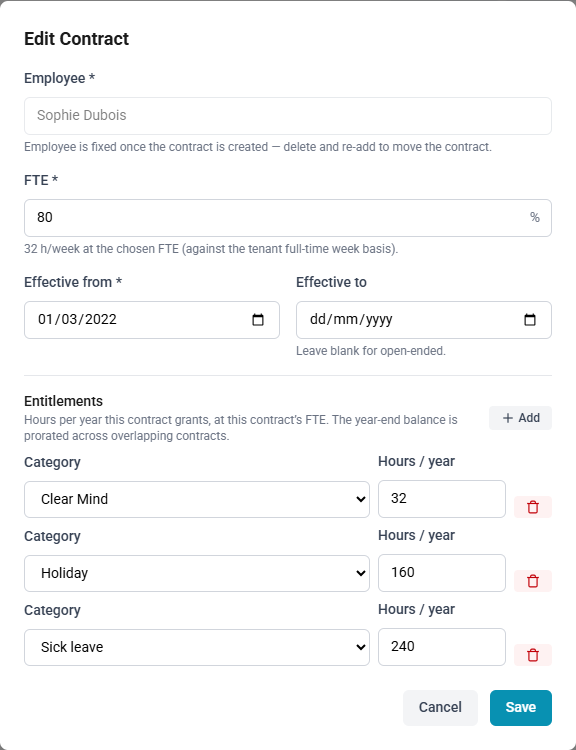
| Employee | The person the contract belongs to. It is fixed once the contract exists: to move a contract to someone else, delete it and create it again for that person. |
| FTE | The share of a full-time week, from 1 % to 100 %. The form shows the weekly hours it corresponds to, based on Full-time weekly hours under Settings → Time recording (40 by default). |
| Effective from | The first day the contract applies. |
| Effective to | The last day it applies. Leave it blank for an open-ended contract, shown as open-ended in the list. |
| Entitlements | One line per category: the category and its Hours / year. Each category appears once per contract. Zero hours is allowed. |
An employee's contracts may not overlap. A contract whose dates overlap another of the same person's is refused with This range overlaps an existing contract for the employee.
The expected hours of each day come from the employee's schedule, not from the FTE; see Schedules.
How entitlements become a balance
The hours entered are the hours the contract grants at its own FTE. An 80 % contract with 160 h of holiday grants 160 h; the FTE does not scale the figure.
The only adjustment is for the part of the year a contract covers. For each year, every contract that touches it contributes its hours in proportion to the days of the year it covers:
| Contracts in the year | Holiday balance for the year |
|---|---|
| One open-ended contract from before the year, 200 h | 200 h |
| One contract ending on 30 June, 200 h | 200 × 181/365 ≈ 99.18 h |
| 100 % from 1 January to 30 June with 200 h, then 80 % from 1 July with 160 h | 99.18 h + 80.66 h ≈ 179.84 h |
| No contract, or no entitlement for the category | 0 h |
Leap years count 366 days. Hours carried in from the previous year are added on top; see Flex and opening balances.
Balances are calculated from the contracts as they stand. Changing a contract's hours or dates therefore changes the balance of every year it covers.
How to create a contract
- Open Time Management → Employee Contracts and select New.
- Choose the Employee.
- Enter the FTE.
- Enter Effective from, and Effective to if the contract ends.
- Under Entitlements, select Add, choose the Category and enter the Hours / year. Repeat for each category.
- Select Save.
How to change an employee's FTE from a given date
- Open Time Management → Employee Contracts and choose the employee under Filter by employee.
- Select Edit on the current contract, enter the day before the change in Effective to, and select Save.
- Select New, enter the FTE that applies from the change, enter the date of the change in Effective from, and enter the entitlements at that FTE.
- Select Save.
How to delete a contract
- Select Delete on the contract.
- Confirm. The contract's entitlements are deleted with it.
Contract templates
A template is a named set of entitlements, such as Full time (100%) or Part time (80%). Applying it creates a contract with those entitlements.
The hours are copied exactly as the template states them, whatever FTE is entered: there is no FTE proration. Adjust the contract afterwards if a different figure is needed. A contract keeps no link to its template, so later changes to the template, or deleting it, do not affect contracts already created.
How to create a template
- Open Time Management → Contract Templates and select New.
- Enter a Name, which must be unique, and optionally a Description.
- Under Entitlements, select Add and enter the hours for each category.
- Select Save.
How to apply a template
- Open Time Management → Employee Contracts and select Apply template.
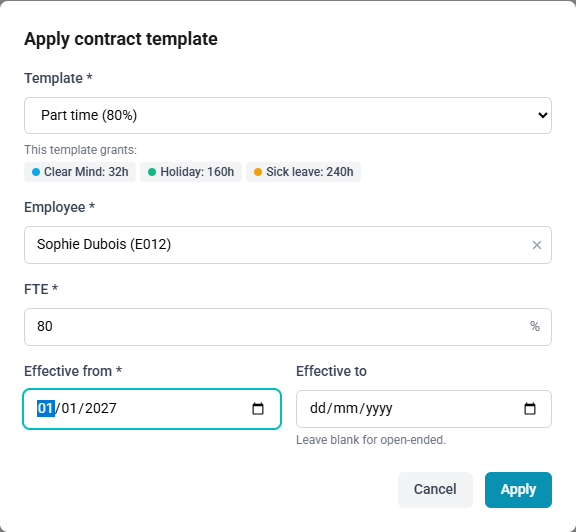
- Choose the Template. The entitlements it grants are listed beneath.
- Choose the Employee and enter the FTE.
- Enter Effective from, and Effective to if the contract ends.
- Select Apply.
Who may do what
| Role | Contracts and templates |
|---|---|
| Administrator, HR | Create, edit and delete both, and apply templates |
| Manager | See the contracts of the people they may open, on the employee's Contract tab |
| Employee | See their own balances |
Where the result appears
- The employee's Contract tab, under Employees: each contract with its FTE, dates and entitlements. It is read-only; for administrators and HR, Manage contracts opens Employee Contracts.
- The request form: the preview shows the year's Allowance, what is Already used or pending, This request and what is Left after this request. See Requesting an absence.
- Balances: the home page and the profile list, for each category the person has an entitlement in, the hours used and remaining in the year. See The home page and Your profile.
- Timecards: an entry in a category that draws on an allowance states how much of it the entry would use.
A category that draws down a balance but has no entitlement on the person's contracts sets no limit on their timecards and does not appear among their balances.