Department absences on the dashboard
The dashboard shows a Department absences card: who in your department is away over the coming days, at a glance. It is the department counterpart of the team absences card that sits above it.
Who sees it
Everyone assigned to a department, whatever their role. The card always shows your own department — your primary department, if you belong to several — and the same is true for administrators, who see their own department here rather than a choice of all of them.
If you are not assigned to a department, the card does not appear at all. Nothing is left in its place, and there is nothing to configure: assigning you to a department makes the card appear on your next visit.
The Team absences card above works the same way: it shows the team you belong to or manage, and is hidden if you are on no team. So a company that uses only one of the two groupings sees only one card, and a company that uses both sees both.
What the card does not show: requested work days, such as remote work. The card answers who is away, and a person working elsewhere is not; their days appear on the calendars instead. The (i) beside the card's title says the same. See Work days that require a request.
Reading it
The columns cover the range you have chosen — two weeks by default — each labelled with its weekday initial and day of the month; today's column is highlighted. See Choosing how far ahead the absence cards look to change it.
Each row is a colleague from your department, whether or not they have anything booked, so the same people appear in the same order every day.
- A solid block marks an approved absence.
- A dashed outline marks one still pending a decision.
- An amber block marks a public holiday that your colleague is not working.
- A grey block marks a day their schedule does not have them working — a colleague contracted Monday to Thursday shows grey every Friday.
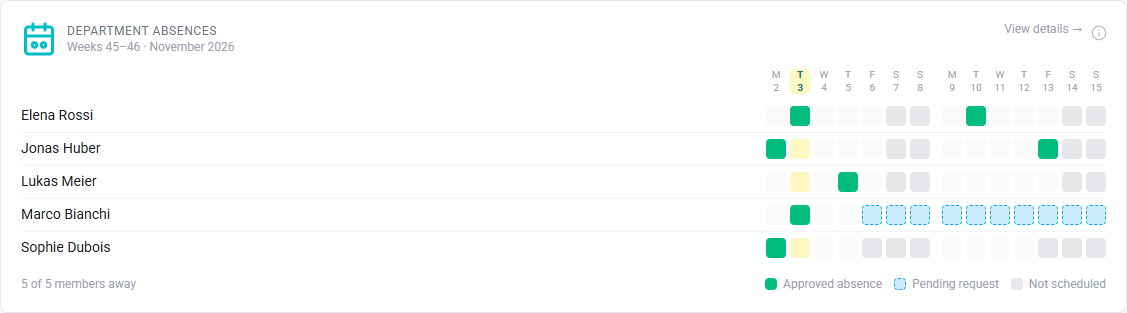
The first two match the colours used on the full calendars, and a key beside the summary line at the foot of the card names whichever of them are on screen — a quiet fortnight lists one or two rather than all four. Hovering over any marked day names the person and what is on it; where a holiday and an absence fall together, the absence is what the cell shows and the tooltip names both.
If your company rosters people through public holidays — common in security, healthcare and hospitality — a colleague scheduled to work one is not marked, because they are available that day. Whether a given schedule works bank holidays is set on the schedule template.
If the range is taller or wider than the card, it scrolls; the dates stay in view at the top while you scroll through your colleagues.
A colleague with no schedule set up shows no grey at all: without one there is nothing to say which days they work, and marking them off would be a guess.
Underneath, a line summarises the range: 3 of 12 members away. Somebody off for a public holiday counts toward it, on the same reasoning — they are not available either. Ordinary non-working days do not count, because every weekend would otherwise report the whole team as away and the line would stop telling a quiet week from a busy one.
What it does not show
- Why someone is away. The absence category is deliberately not shown to colleagues; you see your own categories, and administrators see all of them.
- Working hours. The card answers who is available on a day, not when. The full calendars and the schedule pages carry the detail.
Opening the full calendar
The whole card is a link: selecting it opens the department calendar for the same department, where you can move month by month, see every member including those with nothing booked, and highlight days when several people are away at once.
Related
- Choosing how far ahead the absence cards look — the four ranges and where to change them
- Department absence calendar — the full month view this card links to
- Department overview — who belongs to which department