Creating documents in SAP Business One
The Document Wizard turns recorded efforts, materials and expenses into invoices or sales orders in SAP Business One, one document per business partner. It is found under Effort Management → Document Wizard, and works in three steps: Select Items, Document Details and Summary.
Who may use it
| Role | What they may do |
|---|---|
| Administrator | Select items and create documents, for every employee's items |
| Manager | Select items and create documents, for their own items and those of the members of the teams they manage |
| HR, Employee | The page is not available |
Creating documents requires a connection to SAP Business One, set up by an administrator as a B1 Source. See Connecting SAP Business One and SAP FSM and Module entitlements.
Step 1: Select Items
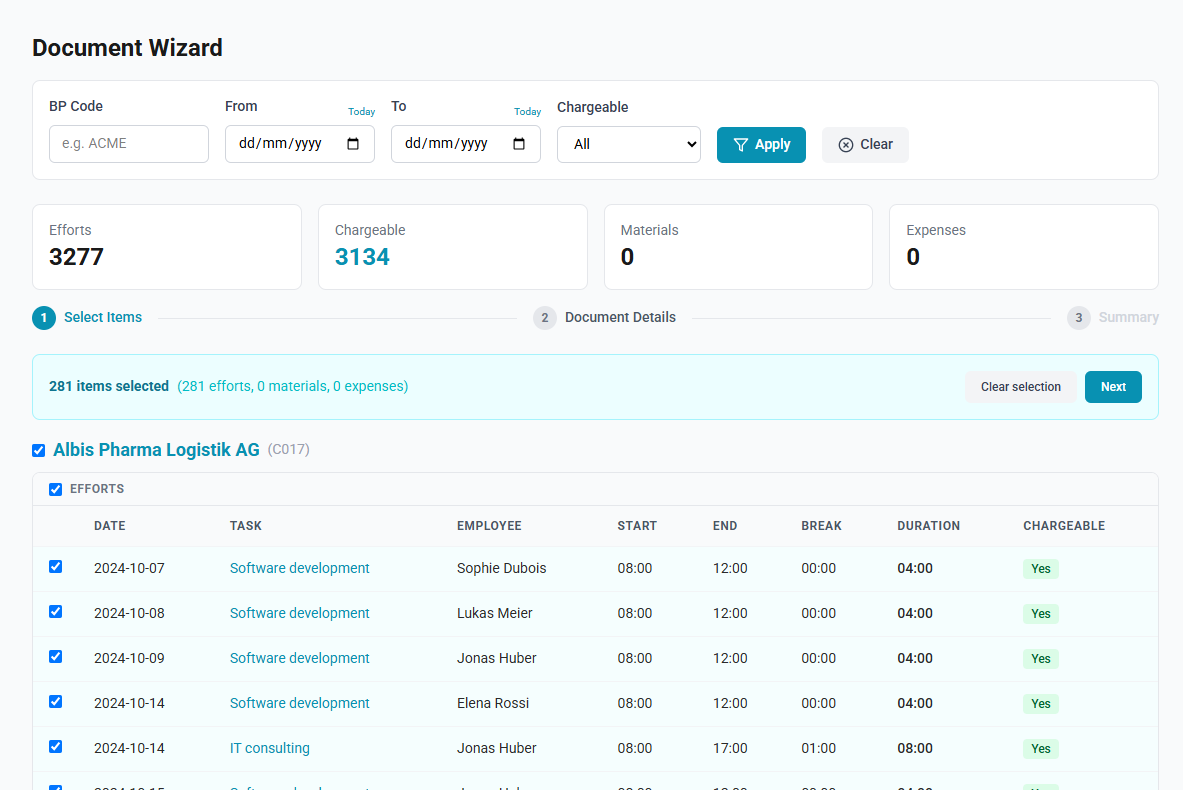
The wizard lists every open effort, material and expense you may see, grouped by business partner. Items already included in a document are not listed. Neither are efforts awaiting approval or rejected, nor their materials and expenses: they are listed once the effort is approved. Efforts that need no approval are listed as soon as they are recorded.
| Filter | What it does |
|---|---|
| BP Code | Limits the list to one business partner, by its code |
| From, To | Limits efforts to those dated in the period, materials to those whose effort is dated in it, and expenses to those dated in it. With a date set, materials not linked to an effort are not listed |
| Chargeable | All, Yes or No. Applies to efforts only |
Above the list, four figures count the Efforts, the Chargeable efforts, the Materials and the Expenses shown.
Items are selected with the boxes: one per item, one per section (efforts, materials or expenses of a business partner), and one beside each business partner's name for all of its items. A bar above the list counts the selection.
How to select the items
- Open Effort Management → Document Wizard.
- Enter the filters, and select Apply.
- Tick the items to include, or the box beside a business partner to include all of its items.
- Check the count in the selection bar, and select Next.
Clear selection removes the selection, and Clear resets the filters.
Step 2: Document Details
| Field | What it sets |
|---|---|
| B1 Source | The SAP Business One company in which the documents are created |
| Document Type | Invoice or Sales Order |
| Due Date | The due date of every document in the batch |
| Remarks | Optional. Added to every document as its comments |
How to create the documents
- Choose the B1 Source.
- Choose the Document Type.
- Enter the Due Date, and the Remarks if needed.
- Select Submit.
- Check the confirmation, which names the document type, the number of business partners and the number of line items, and select Confirm.
Back returns to the selection with the items still selected.
What is created
ChronoHub creates one document for each business partner in the selection, with one line for each item:
| Item | Line in SAP Business One |
|---|---|
| Effort | The item of the effort's task, with the effort's duration in hours as the quantity. The line text is the effort's external remarks, otherwise its description; SAP Business One keeps its first 100 characters |
| Material | The material's item and quantity, or a quantity of 1 when none was entered |
| Expense | The expense's item, with a quantity of 1 and the amount as the price, in the expense's currency |
Items that are not chargeable are included with a 100 % discount.
Step 3: Summary
The summary opens once SAP Business One has answered. Its heading reads All documents created successfully, Partially completed or Document creation failed, followed by how many of the documents were created.
Beneath, a card for each business partner shows the document number on success, as SAP Business One shows it, how many efforts, materials and expenses went into it, and, on failure, the message returned by SAP Business One.
The business partners are processed independently. A failure for one does not undo the documents created for the others.
How to start another batch
- Select New batch. The wizard returns to the first step and reloads the list.
What happens to the included items
Every effort, material and expense in a document that was created becomes closed:
- It cannot be edited or deleted, and opens for viewing only.
- Its status shows the document, for example AR Invoice #1234 or Sales Order #1234.
- It is hidden from the Efforts, Materials and Expenses lists until Show closed is ticked, and the wizard does not offer it again.
The items of a business partner whose document failed stay open, and can be selected again in a new batch.