Teams
A team groups people under one manager. The manager is the team members' approver, and the team decides whose absences its members see on the team calendar. Administrators maintain teams under Team Management → Teams; everyone can look up their teams under Team Management → Team Overview.
Teams
Only administrators see this page. It lists each team's Code, Name, Manager and number of Members.
How to create a team
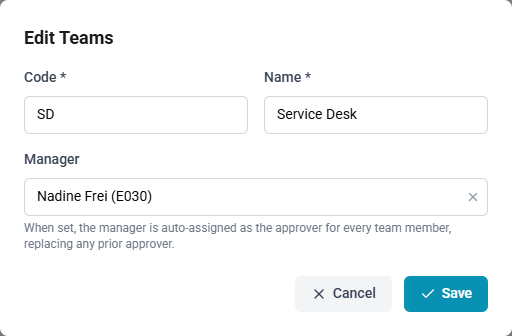
- Open Team Management → Teams and select New.
- Enter the Code and the Name.
- Choose the Manager. Administrators, managers and HR are offered.
- Select Save.
The manager becomes the approver
Giving a team a manager, or a different one, makes that manager the Direct approver of every member, replacing any approver set before. A manager who is also a member of their own team is not their own approver. Saving the team without changing its manager, for example to rename it, changes no approver, and removing the manager leaves the members' approvers as they are.
The same happens to one person when they join a team, or move to another: that team's manager becomes their approver. A member may then be given a different approver on their employee record, and keeps it. See Approvals.
Members are set on the employee
A team has no member list of its own. Each person's team is chosen on their employee record.
How to put someone in a team
- Open Master Data → Employees and select the person.
- Open the Organisation tab.
- Choose the Team.
- Select Save.
A person belongs to at most one team. Managers may place people only in a team they manage. See Employees.
How to delete a team
- Select Delete beside the team.
- Confirm with Delete.
Its members are then in no team; their approver stays as it was.
Importing teams from SAP Business One
Teams are imported with the rest of a SAP Business One source, under Integrations → B1 Sources, in the step after its employees, since teams are matched to the imported employees by their code. The import:
- creates and updates a team for each SAP Business One team, and removes imported teams that no longer exist there;
- makes the team's leader its manager; with several leaders, the one with the lowest employee code whose role may approve (administrator, manager or HR);
- leaves a team's manager, and its members' approvers, as they are when none of its leaders has a role that may approve, and lists the team among the skipped rows, so that an administrator can change the leader's role or choose the manager;
- places each imported employee in a team: the team they lead, otherwise the team they belong to, choosing the lowest team code if there are several;
- takes imported employees who are in no SAP Business One team out of their team;
- does not change anyone's role.
See Importing master data and Connecting SAP Business One and SAP FSM.
Team Overview
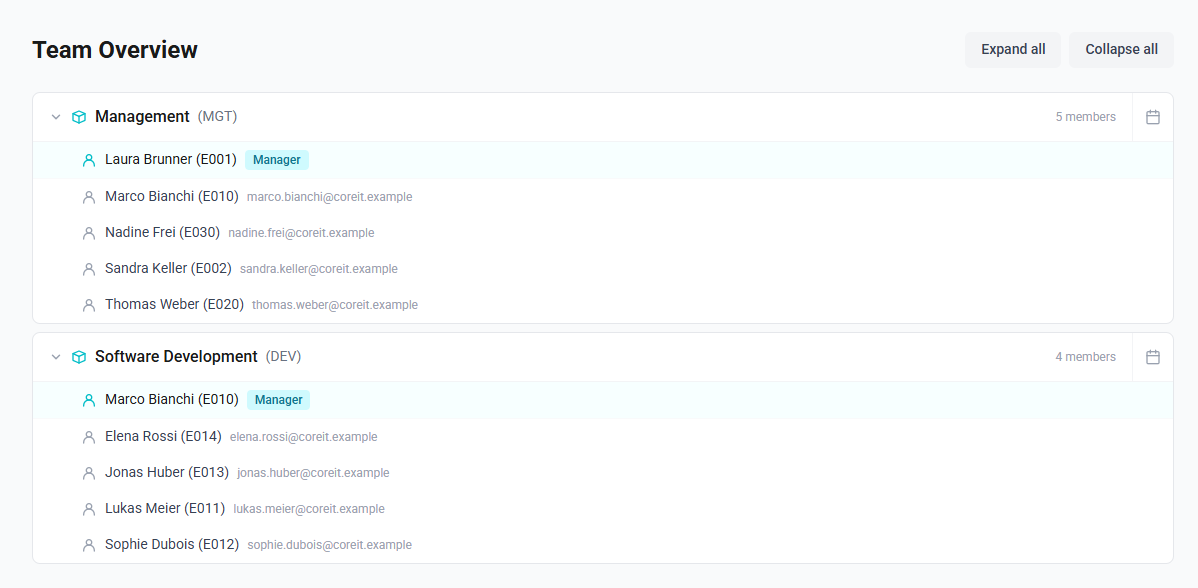
Team Overview shows the teams and who is in them.
| Role | Teams shown |
|---|---|
| Administrator, HR | Every team |
| Everyone else | The team they belong to, and the teams they manage |
Each team shows its name, code and number of members. Opened, it lists the manager first, marked Manager, or No manager assigned., followed by the members with their email addresses, or No members.
All teams are open when the page loads. Collapse all and Expand all close and open them together; selecting a team's name closes or opens that one.
The calendar symbol at the end of a team's row opens the Team Calendar for that team. See The calendars.